Android 17 Identity Check: The 2026 Shield for Your Phone and Watch
It’s June 2026, and Google has just unveiled **Android 17**. While there are many new flashy features, the one that every UK smartphone user needs to know about is Identity Check. For years, the 'Lock Screen' was the only line of defense for your phone. If a thief saw you type your PIN at a coffee shop and then snatched your phone, they had access to everything—your bank, your emails, and your private messages. Android 17 finally changes that power dynamic.
If you are looking for how to stay safe online in this new era, Identity Check is the answer. It is a system-level security state that watches over your most sensitive apps. Today, we’ll show you how to enable this 2026 'Digital Bodyguard' and how it works in sync with your smart watch to ensure your secure online accounts remain truly yours.
How Identity Check Works
Normally, once your phone is unlocked, any app can be opened. With Identity Check, your phone uses 'Behavioral AI' to notice if something is wrong. If you are away from your home 'Safe Zone' and try to open your banking app or change your Google password, the phone will force a biometric scan (face or fingerprint), even if the phone is already unlocked.
The Smart Watch Integration
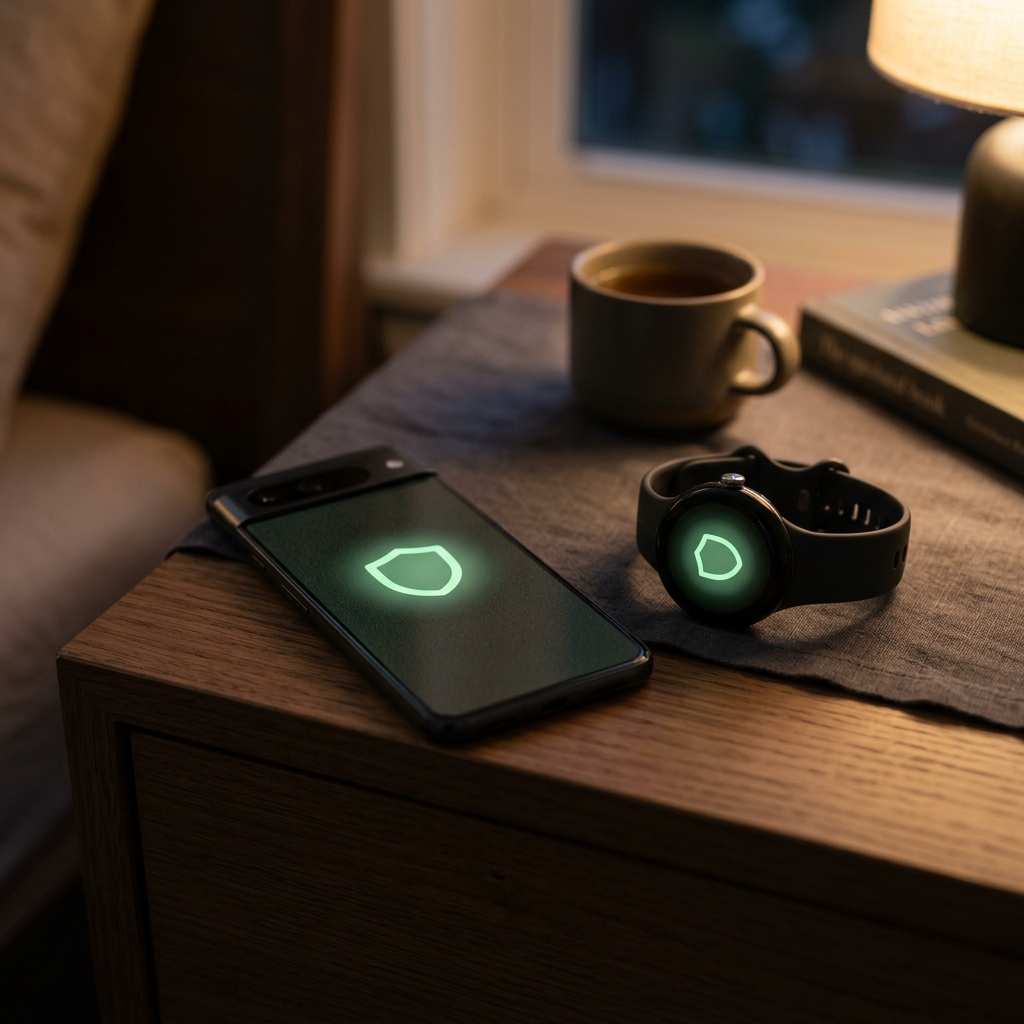
A brilliant addition in 2026 is that your Android Watch now acts as a 'Security Anchor.' If your phone moves more than 10 meters away from your watch, it enters 'Lockdown Mode' automatically. This makes 'snatch and run' thefts useless for the criminal, as the phone bricks itself before they can even reach the corner of the street.
3 Steps to Activate Your 2026 Defense
- Update to Android 17: Go to Settings > System > System Update. If you have a Google Pixel or a recent Samsung, this should be available by June or July 2026.
- Set 'Identity Check' for Apps: In the Security & Privacy menu, tap on 'Identity Check.' You can select specific apps (like Barclays, PayPal, or NHS) that will *always* require a fingerprint, no matter what.
- Define 'Trusted Places': Set your home as a 'Safe Zone.' This way, you don't have to keep scanning your thumb while you're sitting on your sofa, but the second you step outside, the high-security locks engage.
What to Do Next
Don't just rely on the technology; pair it with good mobile security habits. Ensure your backup PIN is at least 6 digits long and isn't something obvious like your birthday. In 2026, device security is about 'Layered Protection'—the watch, the fingerprint, and the safe-zone AI working together to keep the burglars out of your pocket.
The Golden Rule: Your face and fingerprint are the only keys that can't be stolen. Use Identity Check to ensure they are the only way into your most important apps.