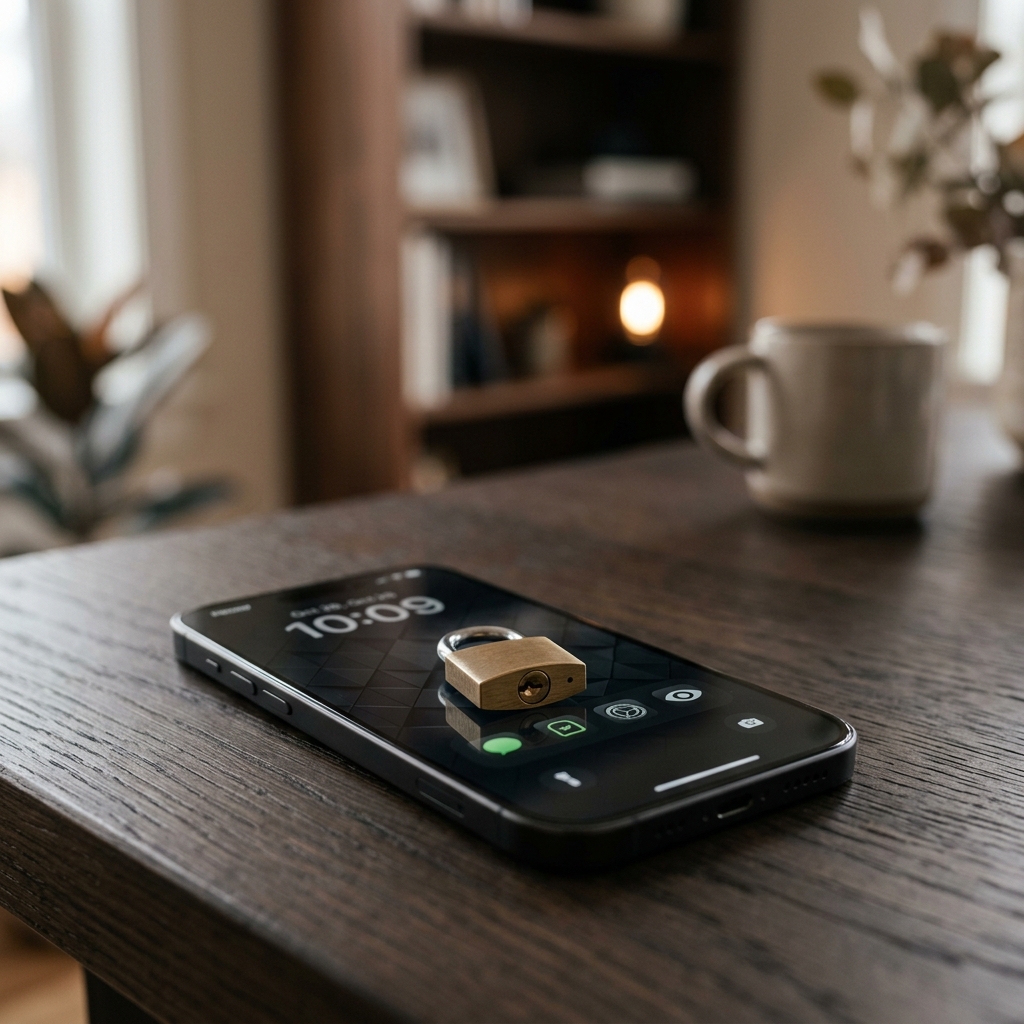
Hiding Apps on iPhone: The 2026 Guide to 'On-Device' Privacy
We’ve all had that moment of 'Smartphone Anxiety.' You want to show a friend a photo of your holiday, or you let your grandchild play a game on your phone, and you suddenly realize: 'What if they click on my banking app? What if they see my private health results?' In the past, your only choice was to watch them like a hawk. But in 2026, Apple has solved this with a powerful new data privacy tool: Locked and Hidden Apps.
If you are asking how to limit data sharing on iphone, this is the most practical setting you can change today. It allows you to build a 'Digital Safe' inside your phone where your most sensitive information stays invisible to everyone but you. Today, we’ll walk through the 2-minute 2026 guide to locking down your iPhone for better identity protection. No more hovering—just total peace of mind.
The 'Face ID' Shield
In 2026, you can now require a Face ID or Touch ID scan for *any* individual app. Even if your phone is already unlocked and in someone else's hand, they cannot open the 'locked' app without your physical face. This is the ultimate defense against 'Local Snooping.'
How to Lock an App:
- Find the app on your Home Screen (e.g., Barclays or NHS).
- Press and hold your finger on the app icon.
- Select 'Require Face ID' from the menu.
The 'Hidden' Vault: Total Invisibility
If 'Locking' isn't enough, you can choose to **Hide** the app entirely. When an app is hidden, it vanishes from your Home Screen, it doesn't show up in your Search results, and—most importantly—its notifications are silent and invisible. It moves to a secret 'Hidden' folder at the very bottom of your App Library that can only be opened with your fingerprint. This is a massive boost for your online privacy.
3 Reasons Seniors Love This Feature
- Grandchild-Proofing: Let them play 'Candy Crush' without worrying they'll accidentally message your solicitor or buy £200 of Amazon credit.
- Theft Protection: If a thief snatches your unlocked phone, they won't even *see* that you have a banking app, giving you more time to use our remote wipe guide.
- Clutter Control: You can hide those 'system' apps you never use but can't delete, making your phone simpler and easier to navigate.
What to Do Next
Take 5 minutes this afternoon to 'Audit' your home screen. Identify the three apps you'd be most worried about a stranger seeing (usually Bank, Email, and Photos) and Lock them today. It is a tiny habit that provides a massive layer of online safety basics. Your phone is a tool for your life—make sure you're the only one who can see the most important parts of it.
The Golden Rule: Privacy is about control. By locking your most sensitive apps, you are ensuring that your digital life stays private, even when your phone is in someone else's hand.