The Hidden Threat: How to Secure Your Home Printer and Scanner in 2026
Think about the last thing you printed. Was it a boarding pass? A bank statement? A copy of your passport? We use our home printers for our most sensitive paperwork, yet they are often the most neglected devices in our house. In 2026, cybercriminals have realized that while people are very good at locking their phones, they almost never lock their printers. A hacked printer can be used to 'intercept' your documents as they are sent through the air, or even as a 'stepping stone' to reach your laptop.
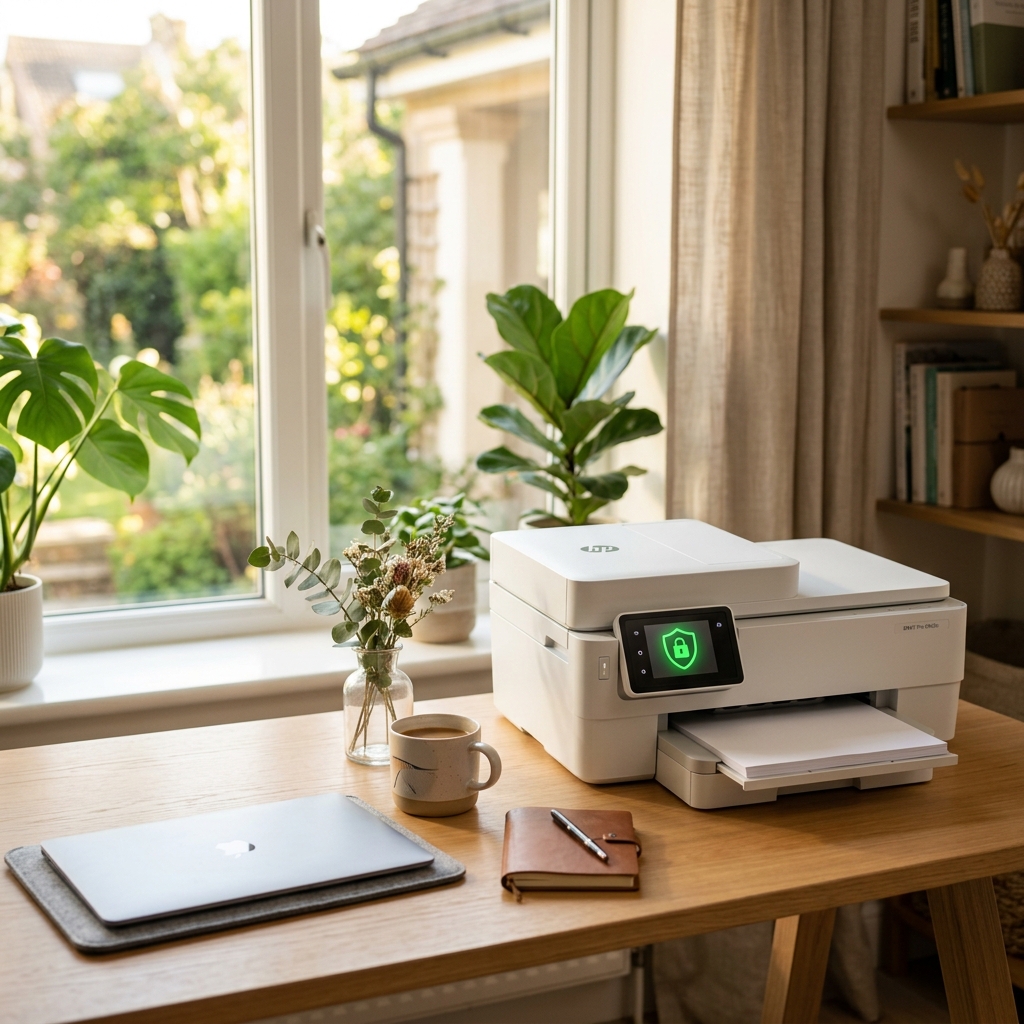
If you are asking how to secure devices at home, you must look at that little white box in the corner of your study. Modern device security is no longer just about screens; it's about anything with a Wi-Fi connection. Today, we’ll explain the 'Hidden Holes' in home printing and give you a 3-step checklist to ensure your private documents stay between you and the paper.
The 'Mopria' Update: Security in Simplicity
In the past, every printer needed its own 'Driver' (special software) installed on your computer. Hackers often hid malware inside fake printer drivers on the web. In 2026, Windows and Mac have moved to a single, 'Inbox-Class' universal driver based on the Mopria standard. This is a massive boost for internet security because you no longer have to download risky software from a manufacturer's messy website. If your printer supports Mopria, it is significantly safer to use.
3 Ways Your Printer Can Leak Data
- Unsecured Wi-Fi: If your printer has its own 'Wi-Fi Direct' signal with a default password like '12345678,' a neighbor can connect to it and 'see' what you are printing.
- Cloud Printing: Features like 'Print from anywhere' send your document to a server in another country before it reaches your printer. If that account isn't secured with 2FA, it's a huge risk.
- Internal Memory: High-end printers save a 'Digital Copy' of every document they print. If you sell an old printer without wiping it, the next owner could recover your bank statements.
3 Steps to a Secure Printer Today
- Change the Admin Password: Just like your router, your printer has an 'Admin Dashboard.' Access it by typing the printer's IP address into your browser. Change the default password immediately.
- Turn off 'Web Services': Unless you specifically need to print from a different city, turn off 'ePrint' or 'Cloud Print' in the settings. Keeping your printer 'Local Only' is the best form of data protection.
- Put it on the 'Guest' Wi-Fi: Follow our wifi security guide and move your printer to your Guest network. This ensures that even if someone 'hacks' the printer, they are stuck in a digital cage and cannot reach your primary computer.
What to Do Next
The next time you print a sensitive document, look at the little screen on the printer. If it asks to 'Update Firmware,' click YES. These updates are the digital armor that stops cyber attacks before they happen. Your printer is a computer with a paper tray—treat it with the same level of security care you give your laptop.
The Golden Rule: If you wouldn't leave a bank statement sitting on your front lawn, don't leave your printer's digital gates wide open. Lock the Wi-Fi and keep the firmware updated.