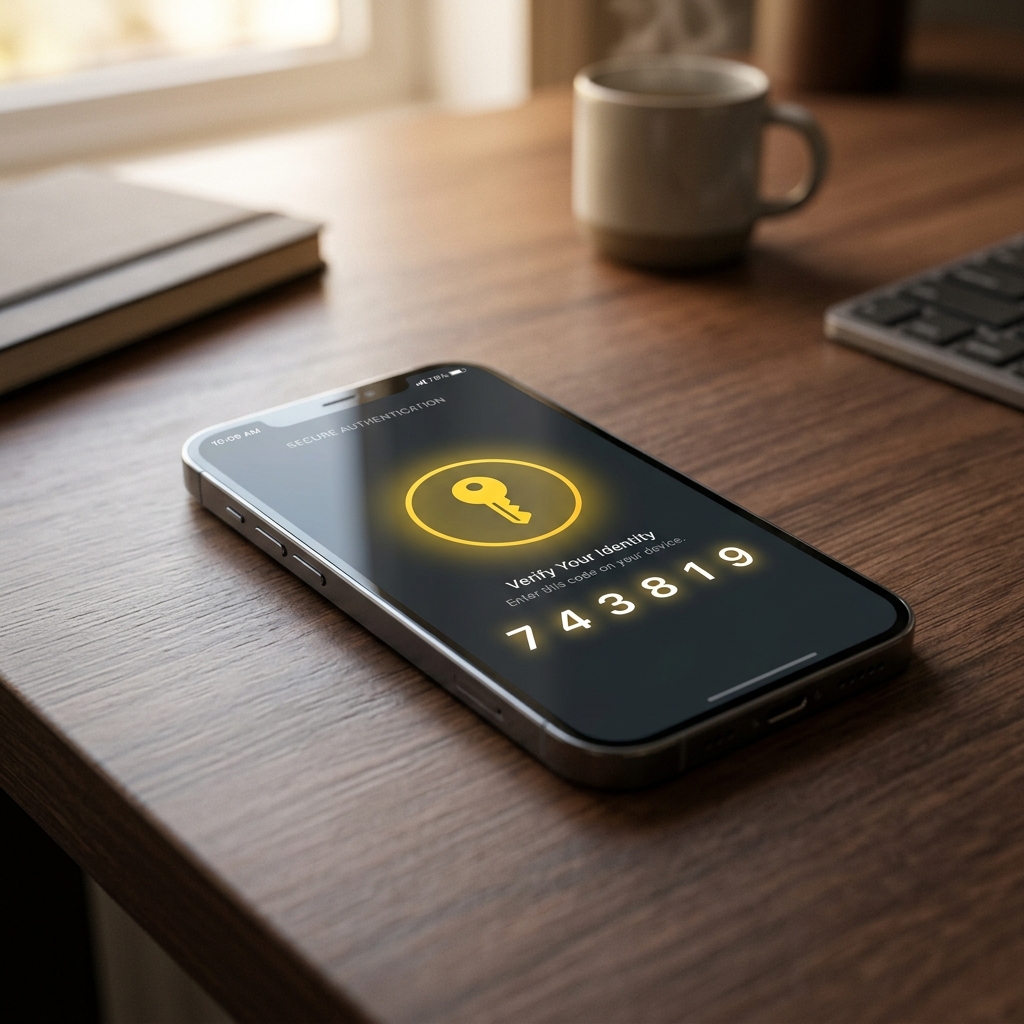
Mastering Two-Factor Authentication: Why You Need an Authenticator App
You’ve heard the term two-factor authentication (or 2FA) a thousand times. Every time you log into your bank or your email, the website asks for a 'Security Code.' You wait for a text message to arrive, type in the 6 digits, and you’re in. It feels like a solid defense. But as we move into 2026, the 'text message code' has become the favorite target for hackers. They’ve developed a way to 'hijack' your phone number without even touching your phone. It’s called 'SIM Swapping,' and it’s why your digital life needs an upgrade.
If you are asking what is two factor authentication or how to make your secure online accounts even safer, you are looking for an authenticator app. These free apps live on your physical phone and generate codes that never travel through the air, making them 100% immune to phone-number hacking. Today, we’ll show you how to set one up in five minutes so you can sleep soundly knowing your life savings are truly locked away.
The Problem with Text Messages (SMS)
In the world of cyber security, text messages are 'unencrypted.' This means that as the code travels from your bank to your phone, it is vulnerable. A hacker can call your mobile provider, pretend to be you, and 'swap' your number to their own phone. Suddenly, your phone stops working, and all your bank codes start arriving on the hacker's device. This is the #1 way high-value accounts are stolen in the UK today.
The 'Authenticator' Solution
An authenticator app (like Google Authenticator or Authy) doesn't use the phone network. It uses a secret 'Digital Handshake' between the website and your phone. Every 30 seconds, the app generates a new code. Because the code stays on your physical phone, a hacker in another country cannot see it, even if they have stolen your phone number.
How to Set Up 2FA Today (The Step-by-Step)
Setting up an authenticator is easier than it sounds. Follow this how to stay safe online checklist for your email account first:
- Download the App: Go to the official App Store and download **Authy** (our top recommendation for beginners) or **Google Authenticator**.
- Log in to Your Email: On your laptop, log into your email and go to 'Settings' or 'Security.' Look for 'Two-Step Verification.'
- Scan the QR Code: When you select 'Authenticator App' on the website, a black-and-white square (QR code) will appear. Open the app on your phone, click 'Add Account,' and point your camera at the screen.
- Verify: The app will now show a 6-digit code. Type it into the website once to finish the link. You are now unhackable!
Google Authenticator vs Authy: Which is Best?
For most retirees, we recommend Authy. Why? Because it allows you to 'back up' your security keys to the cloud with a special password. If you lose your phone, you can just log into Authy on a new device and all your bank codes are there. With Google Authenticator, if you lose your phone, you might be locked out of your accounts forever. Authy is the best password manager companion for any beginner.
The Golden Rule: Any 2FA is better than none, but an app is better than a text. Spend 10 minutes today moving your email and banking to an authenticator app for total peace of mind.